Back in March I wrote about a Pi-based controller for multiple Halloween props. As I go the props ready this year, I realized three things: 1) I wanted to change the routine from what I planned, 2) The way I needed to connect this particular set of props was different than what I’d been planning and 3) it turns out I couldn’t use an electromechanical relay board to react to the trigger signal from the Pi to one of the skeletons, because it holds open too long. So, back to the drawing board, as well as desoldering and resoldering.
My setup for this year includes two skeletons talking to one another. One is a simple talking pose-and-stay type of skeleton, with light up eyes and a moving jaw driven by a motor. The other is a talking and moving skeleton prop called Grim. Besides wanting movement to trigger them, I needed to be able to provided custom audio phrases for them to say to one another.
Talking Skeleton
The talking skeleton [insert photo] uses a motor to drive the jaw movement, and has light up LED eyes. In order to allow for custom audio, I disconnected the built in sensor and sounds and connected a commercial audio controller called a Jemmy Talk. The Gemmy Talk takes line level audio input and sends out voltages to move the motor. It also has a pass through for the audio, so that you can send line level output to an amplifier. I don’t use this latter feature in my set up. I use a DFPlayer MP3 player as my audio source. It has both a line level output, which I feed to the Jemmy Talk, and amplified audio that I feed directly to the speaker built into the skeleton. The board with the DFPlayer is also where the power is supplied, through a barrel jack connector to a 5V supply. The button switch on the board is to test things without requiring an external trigger signal. The two 3-pin connectors on the board are not used. The three boards are shown in the picture. Besides the Jemmy Talk and the board with the DFPlayer, the third board receives the triggers from a Raspberry Pi (see “Controller,” below).

The audio source and controls for the skeleton, showing the Jemmy Talk board, the board with the DFPlayer MP3 player, and the board with input from an external controller and Darlington array.
The circuit board on the bottom will receive the triggers from a Raspberry Pi (not shown) and features a Darlington ULN2003 transistor array chip that acts as a set of relays to signal the DFPlayer to play the audio and also to turn the skeleton’s eyes on. I had originally used an electro-mechanical relay rather than the Darlington array, but the MP3 player requires that the button press to play the audio be short, and the relay held closed too long when triggered. The MP3 player uses a short drop to ground to signal to play the next track, which is what I needed, while a longer drop on the same pin signals the player to turn up the volume. Had I known that I would be using the Darlington array from the start, rather than a separate relay board, I could have fit everything on just one, rather than two, boards.
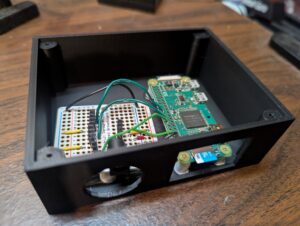
If the skeleton was like many, with simple LED eyes, I could have used the Jemmy Talk to control them as well, but it doesn’t. So I kept the Try Me wires connected to trigger the eyes to go on. That is what the second trigger on the Darlington is for. That means that I needed two signals from the Pi, one to turn on the audio and one to light the eyes, but this gives me more flexibility for the future. Here’s a picture of the final circuits in a small project box I printed for the project:
Grim
The Grim prop was modified by adding a Grim Talker board from the same source as the Jemmy Talk. Once that was installed per the directions, I just needed to put the correct new audio file on the SD card that goes into the Grim Talker (no external MP3 player needed) and determine how to trigger it. It can be triggered to activate by either the sensor built into the original Grim prop, by cycling the power on and off, or by a Try Me button switch connected through a 1/8″ MONO cable jack. When triggered, the audio and motion routine starts. The audio will play through completion, but the motion will stop once it’s routine (about 30 seconds) ends. If the audio is longer (as in my case) and you retrigger the prop before the audio ends, the motion will start up again. This is what I wanted to do.
Cycling the power wouldn’t do what I wanted, as it would kill the audio. I didn’t want to mess with the built in PIR sensor, as I may want to use it in the future. And I needed to coordinate Grim with the other skeleton. So that left the try me switch. So the multi-prop controller that I put together (a modification of what I described in the Pi-based controller for multiple Halloween props write-up, uses another Darlington to act as a switch that closes to trigger the prop.
Controller

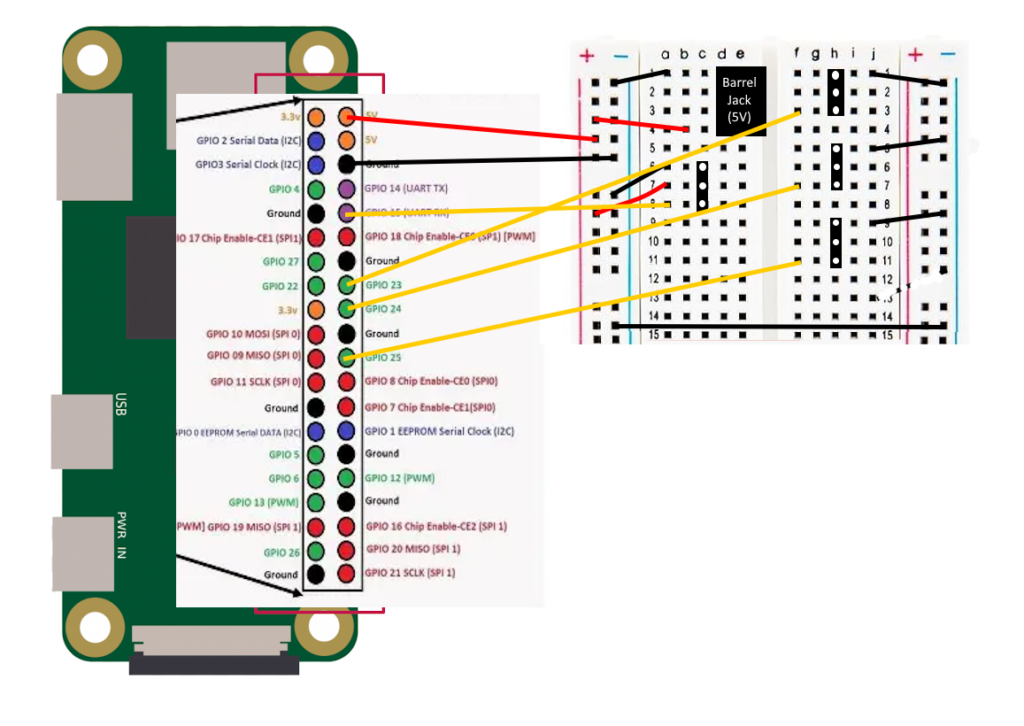
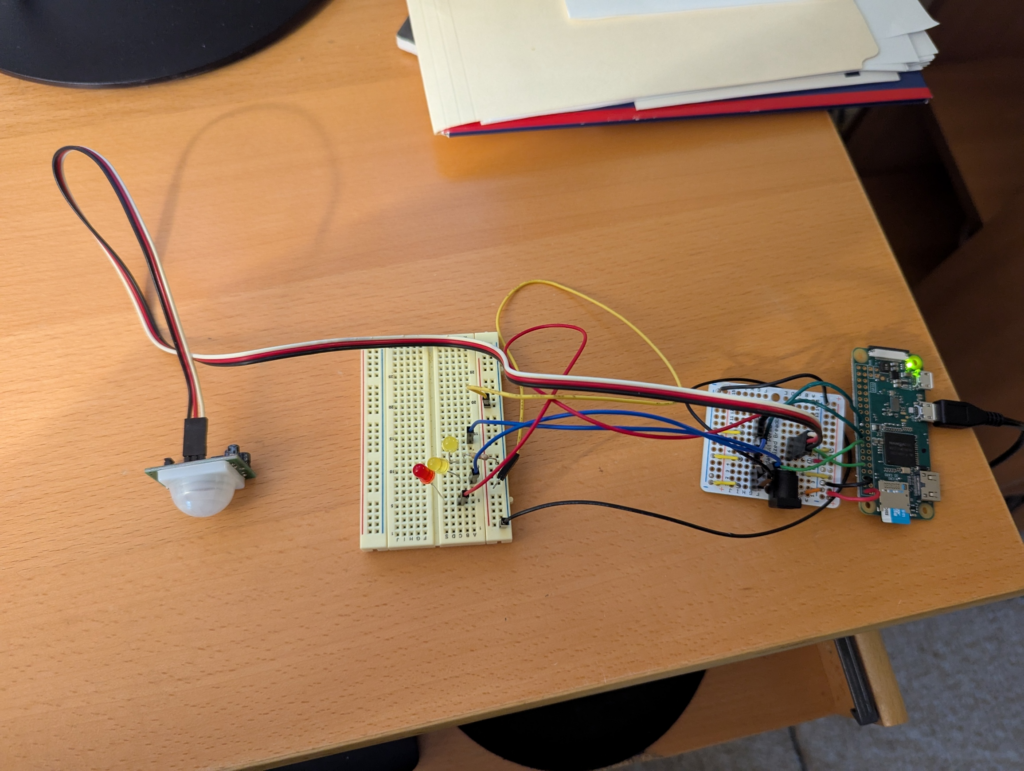
Raspberry Pi based multi-prop controller
In order to control multiple, coordinated, props from a single motion sensor, I put together a simple circuit that controls up to three props, of a couple of different types. A PIR provides input to the Raspberry Pi, which then sends output signals for up to three props. One output simply closes a switch, and it is good for triggering props through their “try me” button wires (replacing the button / switch). For this, the trigger output from one of the GPIO pins on the Pi triggers a relay in a Darlington. This is a bit of an overkill, as I’m only using one of the eight channels on the Darlington, but it’s cheap, easy to use, and works.
Another GPIO pin sends and output voltage to the sensor wire in a 3 pin servo connector. The grounds also link the prop to the controller to provide a common ground. This works for any prop set up to look for input from a PIR or similar sensor providing a positive low voltage signal. What would normally be the voltage source on a servo connector is left unconnected, as it’s not needed to power anything.
Finally, two other GPIO pins send output to another 3-pin connector, using what would normally be the signal and voltage lines on a servo connector. This is for the talking skeleton as described above, with one signal to start the MP3 audio player and the other to control the eyes. Again, the ground is connected to ensure a common ground. This connector could also be used to simply control a prop that only needs a single signal, rather than two, providing flexibility.
The python controller program for this year is really quite simple:
from gpiozero import DigitalOutputDevice
from gpiozero import MotionSensor
import time

skel_talk = DigitalOutputDevice(23)
skel_try_me = DigitalOutputDevice(24)
grim_trigger = DigitalOutputDevice(25)
pir = MotionSensor(15)

while True:
    pir.wait_for_motion()
    print("motion detected")
    skel_talk.on()
    skel_try_me.on()
    grim_trigger.on()
    time.sleep(0.2)
    skel_talk.off()
    skel_try_me.off()
    grim_trigger.off()
    time.sleep(30)
    print("waited 30 seconds")
    grim_trigger.on()
    time.sleep(0.2)
    grim_trigger.off()
    time.sleep(50)
    print("ready to trigger again")
The program uses the gpiozero library for interfacing with the Pi’s GPIO pins. Three pins are used for outputting signals: named skel_talk to trigger the skeleton’s audio, skel_try_me to trigger the relay to close the skeleton’s try me connection, and grim_trigger to send a trigger signal to the Grim prop. These are all defined as simple DigitalOutpuDevice pins. There is one input pin, named pir, which is defined as a MotionSensor input.
The program is an endless loop which waits for the PIR sensor to be set off. When that happens, the three output triggers are both set high (True) for 0.2 seconds and then set back off. Then the program sleeps for 30 seconds while the Grim motion is running, then the grim_trigger is again set high again for 0.2 seconds to trigger the motion to restart (the audio, which is about 1 minute long, is still running). Finally, the program waits 50 seconds. The audio and motion will continue for approximately 30 of these seconds, with the additional 20 seconds being a dead time so that the props don’t immediately retrigger. The print statements are there simply for initial debugging. I used Crontab to set the script to autorun in the background upon startup. I need to modify the script so that once triggered, it also periodically closes the try me switch on the talking skeleton. At present, the eyes only light for a short time at the start of the dialog.
Results
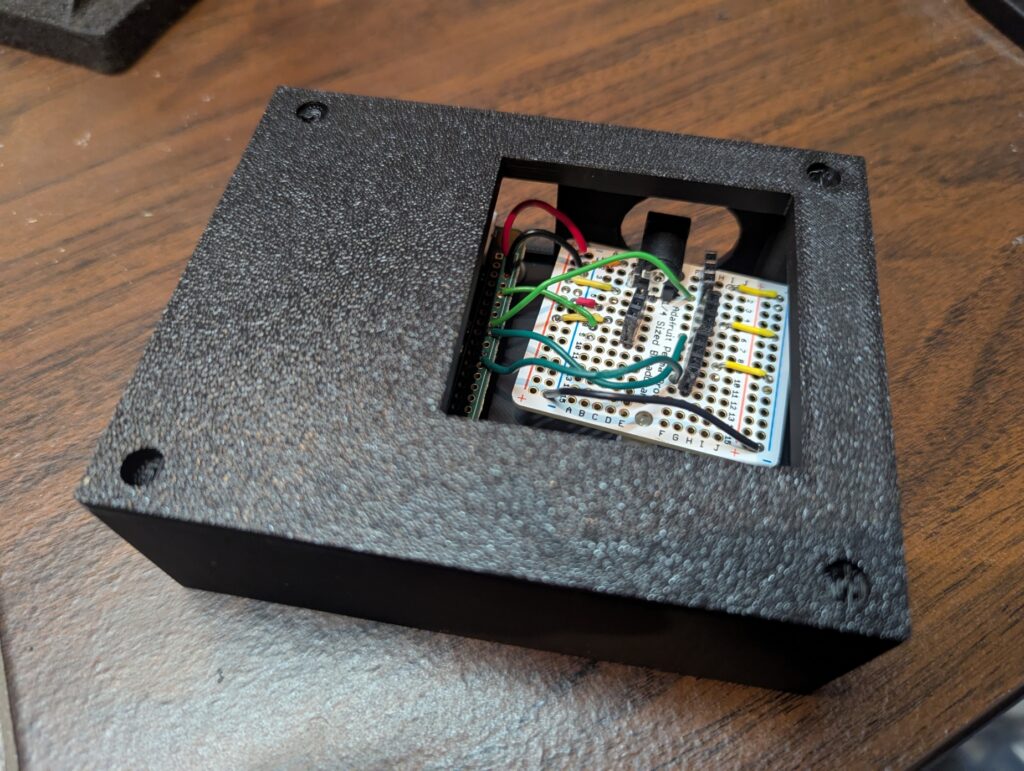
Here’s the two circuits, in their circuit boxes, and then a video

The electronics for the talking skeleton on the left and the Pi-based multi-prop controller on the right.
of the final result in operation. Unfortunately, it’s not a great video clip, but it does show the two skeleton props talking back and forth in a short excerpt from their longer dialog. An mentioned above, I need to add a line or two to the script to periodically retrigger the eyes of the smaller skeleton, so that they stay lit during the whole dialog.
It took more effort than I originally thought it would, partly due to faulty planning on my part, but I think it all came together nicely.